
Configuration guide: Behnke Station and remote station without SIP server, with IP video software
1. Configuring the IP video software
This configuration guide describes how to set up the IP video software when the Behnke Station is operated together with a SIP phone as a remote station in a network without a SIP server/PBX. If required, please refer to the following configuration guide on how to set up the Behnke Station and the remote station: Direct SIP calls (for usage without PBX)
-
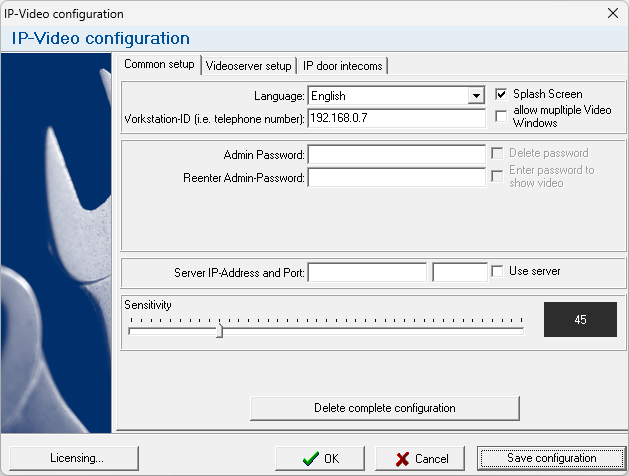
Start the configuration of the IP video software and enter the IP address of the remote station in the "Workstation ID" field. Then click on "Save configuration". The window with the video will only pop up if the Behnke Station is dialing this IP address. It should therefore be ensured that the IP address of the remote station does not change. To do this, the remote station can either be assigned a static IP address, or the DHCP server in the network must be configured in such a way that the remote station is always assigned the same IP address. If in doubt, please ask your admin for advice.
-
Then switch to the "SIP stations" tab in the IP video software. There you should see a black square with the IP address of your Behnke camera in the section on the left. The IP address of the Behnke Station should be listed in the box on the right.
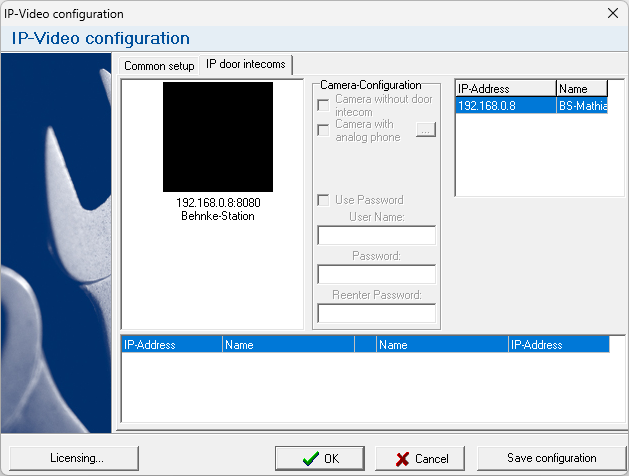
NOTE:If neither the IP address of the Behnke Station nor the camera are listed here, please check whether you have set the exceptions for the IP video software in the Windows® firewall. If only the IP address of the Behnke station is listed, please add the camera manually. The following configuration guide describes how to add a camera manually: Manually adding a camera -
Then select the camera with a left click and enter the "password" for accessing the camera on the right (Admin by default). Then select the Behnke Station in the box on the right and click "Save Configuration" at the bottom. The camera will then be assigned to the Behnke Station and a corresponding entry will appear in the box below. After a few seconds, the camera preview should be displayed.
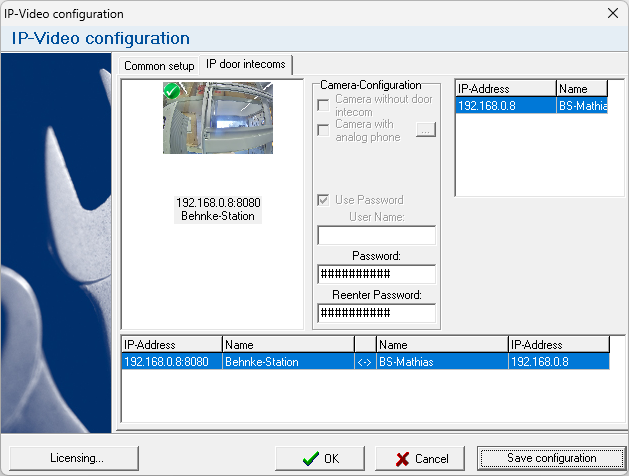


Basic configuration is now complete and the configuration window may be closed. A window with the video should now open automatically when a call is triggered at the Behnke Station. The window is displayed for the duration of the call. After hanging up, the window will close again.