Configuration guide Alcatel-Lucent® OmniPCX® Office
1. Configuration guide
This configuration guide describes how to set up a Behnke Station as a SIP extension of a Alcatel-Lucent® OmniPCX® Office. We are assuming that the basic configuration of the PBX has already been done, and we will only describe the steps required to register the Behnke Station with the OXO. We also assume that the Behnke station has already been integrated into the network and can be accessed via the IP address in a browser.
1.1. Configuring the extension for the Behnke Station
Please contact your Alcatel-Lucent® support on how to set up an extension of the PBX.
1.2. Configuring the Behnke Station
-
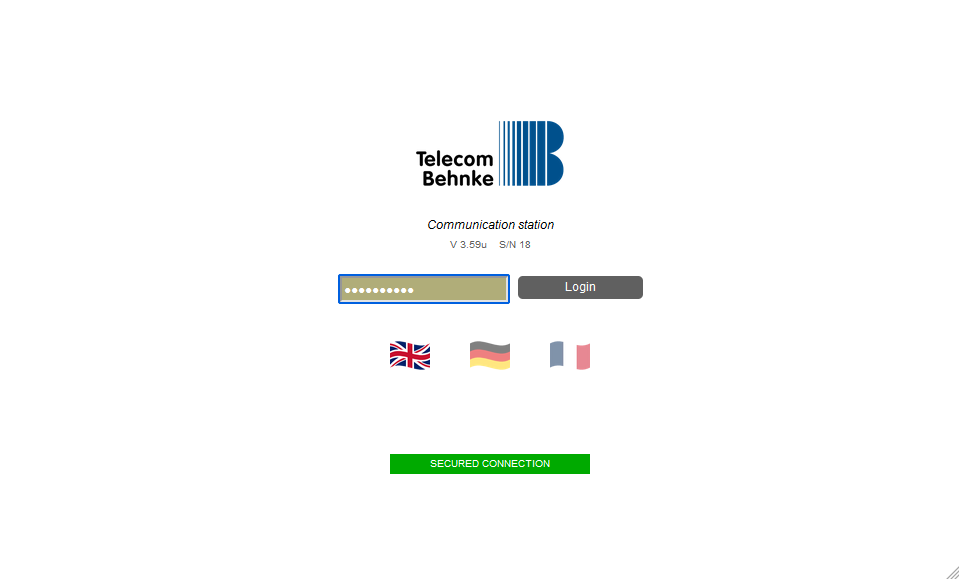
Open a new tab in your browser, enter the IP address of the Behnke Station in the address bar and log in.
-
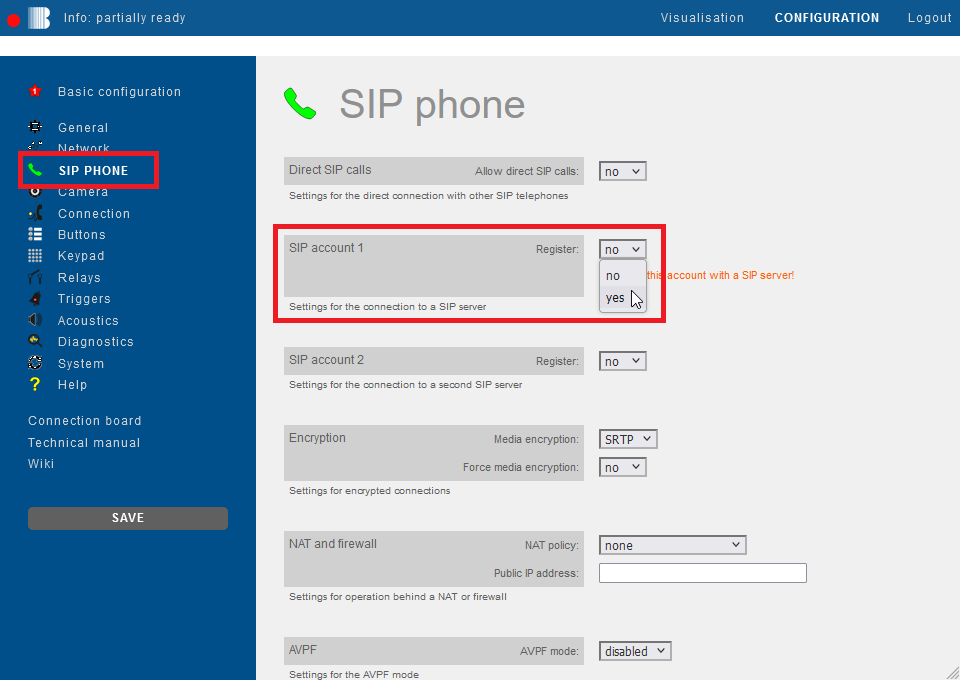
Click on "SIP Phone" in the menu. Scroll down to "SIP account 1" and select the option "yes" for "Register".
-
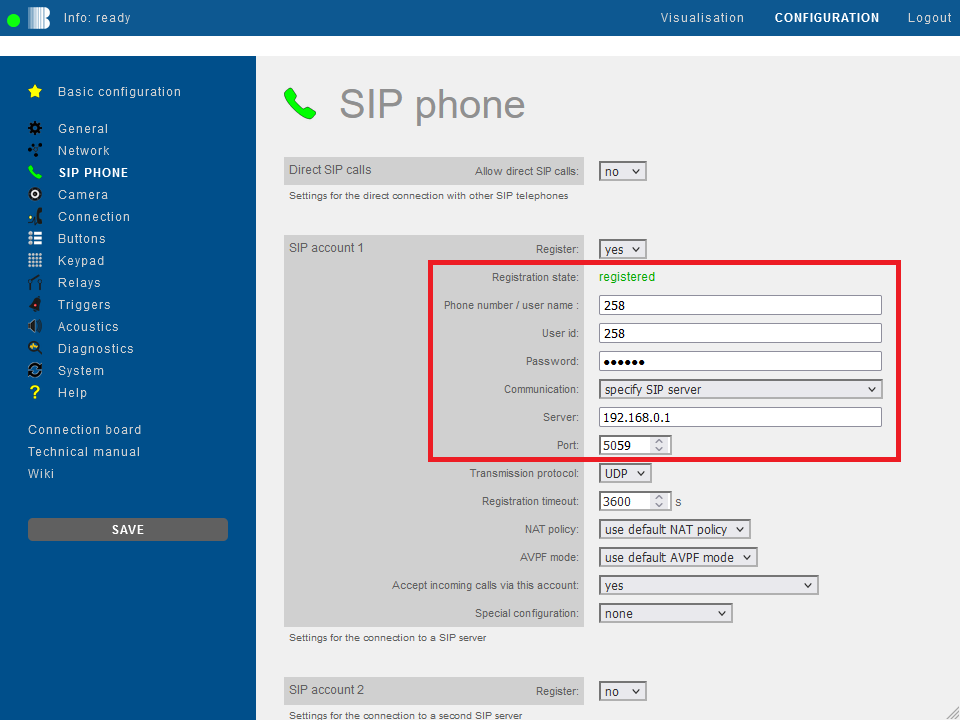
Then fill in the fields with your OXO's SIP credentials as follows and click "Save" on the left.
Field Behnke Station Value OXO Phone number/user name extension User ID extension Password SIP password Server IP address of the OXO Port 5059 If the registration was successful, the "Registration state" changes to registered.
-
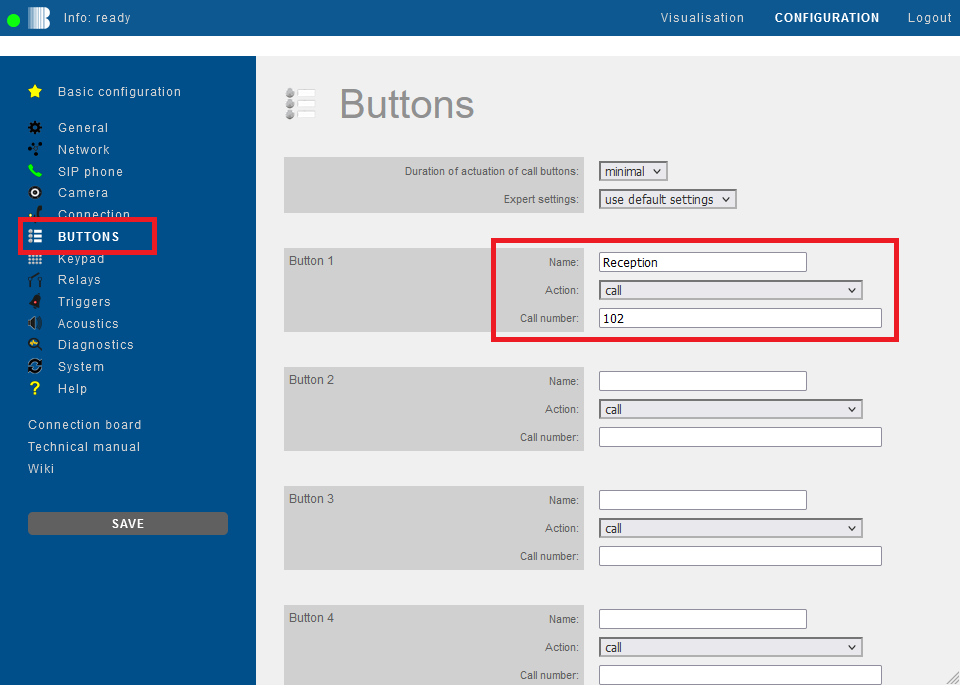
Then click "Buttons" in the menu on the left. For the desired call button enter the extension number or phone number that is to be called when the button is pressed. Then click "Save" on the left.